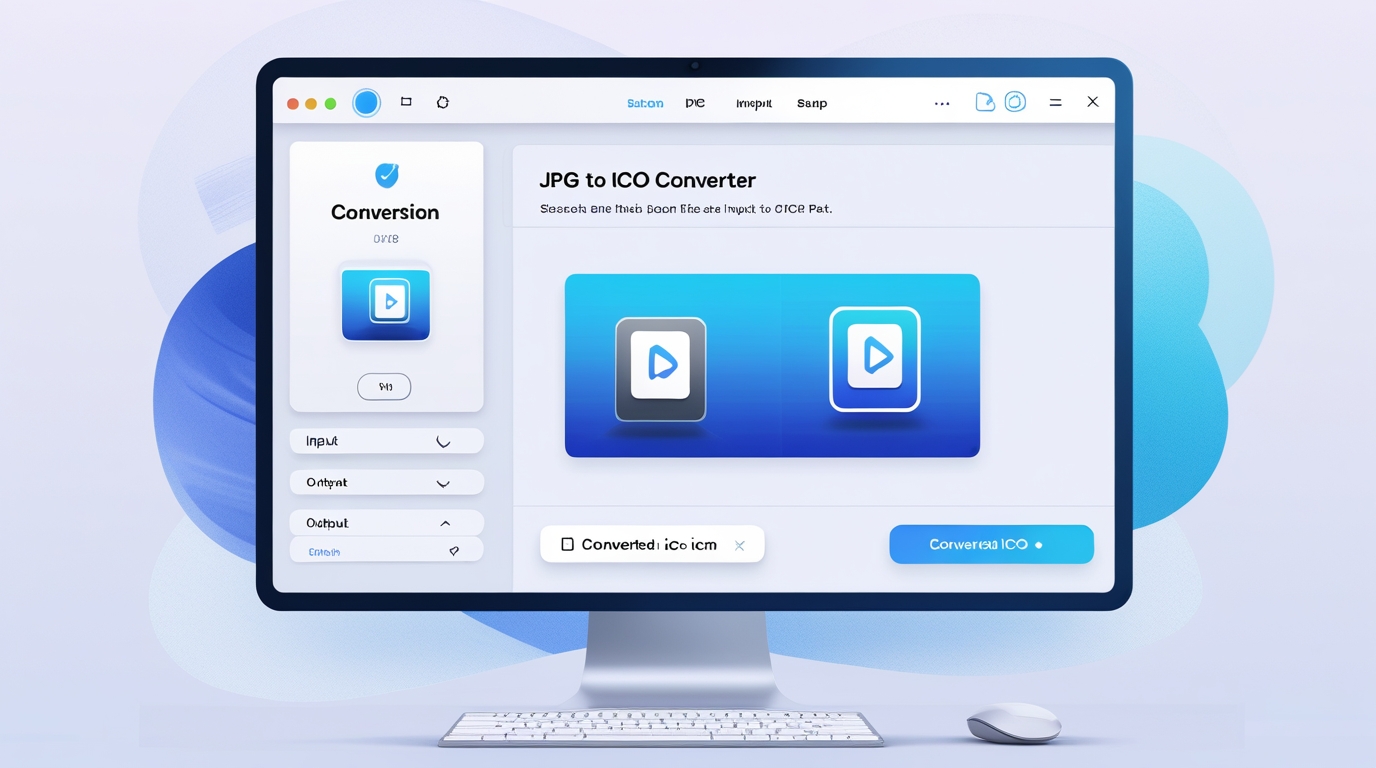
JPG to ICO Conversion: Easy Guide for High-Quality Icons
Created on 9 November, 2025 • Image manipulation tools • 58 views • 2 minutes read
Learn how to convert JPG to ICO easily with step-by-step instructions. Create professional website icons with high-quality images and multiple sizes.
Converting JPG to ICO might seem tricky at first, but it is easier than most people think. Many website owners and designers often need ICO files for their website icons, also known as favicons. Fortunately, with the right tools and steps, anyone can transform a regular JPG image into a high-quality ICO file.Why Convert JPG to ICO?
Before we dive into the process, it is important to understand why converting JPG to ICO matters. First, ICO files are the standard format for website icons. Unlike JPG images, ICO files can include multiple sizes in one file, making them ideal for different devices and screen resolutions.
Second, using ICO files ensures that your website icon looks crisp and professional. JPG images, while perfect for photos, are not optimized for icons because they do not support transparency. Therefore, converting JPG to ICO enhances both the appearance and functionality of your website.
Step-by-Step Guide to Convert JPG to ICO
Step 1: Choose a Reliable Conversion Tool
First, you need a trustworthy tool to convert your JPG file into an ICO file. There are many online converters and desktop applications available. While choosing one, make sure it is easy to use and supports multiple output sizes.
Step 2: Upload Your JPG Image
Next, upload the JPG image you want to convert. Most tools support drag-and-drop, which makes this step faster. Make sure the image is clear and high-resolution because ICO files look better when starting with quality images.
Step 3: Select the Icon Size
After uploading, you will usually see options for icon sizes. Common sizes include 16x16, 32x32, and 48x48 pixels. You can choose one or multiple sizes depending on your needs. Using multiple sizes is recommended because it ensures your icon looks perfect on all devices.
Step 4: Convert and Download
Finally, click the convert button and wait a few seconds. Once the conversion is done, download your new ICO file. Now, your image is ready to be used as a favicon, desktop shortcut, or any other place that requires ICO format.
Tips for a Better JPG to ICO Conversion
Use High-Quality JPGs: Always start with a high-resolution image.
Keep it Simple: Icons are small, so simple designs work best.
Check Transparency: If you need a transparent background, make sure the converter supports it.
Converting JPG to ICO is straightforward if you follow the right steps. By using a reliable tool, choosing proper sizes, and starting with a high-quality image, you can create professional-looking icons for your website or software. This process improves both the appearance and usability of your digital assets.
Popular posts
-
-
-
-
-
DNS LookupChecker tools • 99 views